I regret updating to the new version

Avatar
  • updated
  • Open

I wish I never updated, the new changes to the banners and the tray icon are feature removals being forced on on-prem users. The whole point of screenconnect was to have complete control. Is there a way to disable my license and get a refund on the time remaining? This is an absolute joke you guys are alienating a large portion of your customer base. No one would have issue if this applied to the cloud instances. On-prem means we want control over branding. You removed features without notice. What a joke!


Avatar
1
Austin

Im also sick of a giant garbage company trying to tell us how to run a business.  This has to stop.  We spend quite a bit of money for our on-prem license annually and have been basically told we dont get to do anything our way, and then get told its for "security" yet they wont ever actually explain how a logo makes it secure.

Avatar
0
mtech

I have been a customer for well over a decade, they're pissing on us OG users. I downgraded to 25.4 and wrote a powershell script to cleanly downgrade the agents

(grab machine name, match to table to get Name and CustomProperty1, download custom installer, remove crap version, install 25.4 agent)

Now I'm working on better hardening and then figuring a replacement solution

Avatar
0
eNet

I've been able to roll back my server to the earlier version. I've also got the cert updating on the server. I'm two thirds of the way there. A head start on a way to cleanly roll back the agents would be extremely helpful and very much appreciated. :-)

Avatar
1
mtech

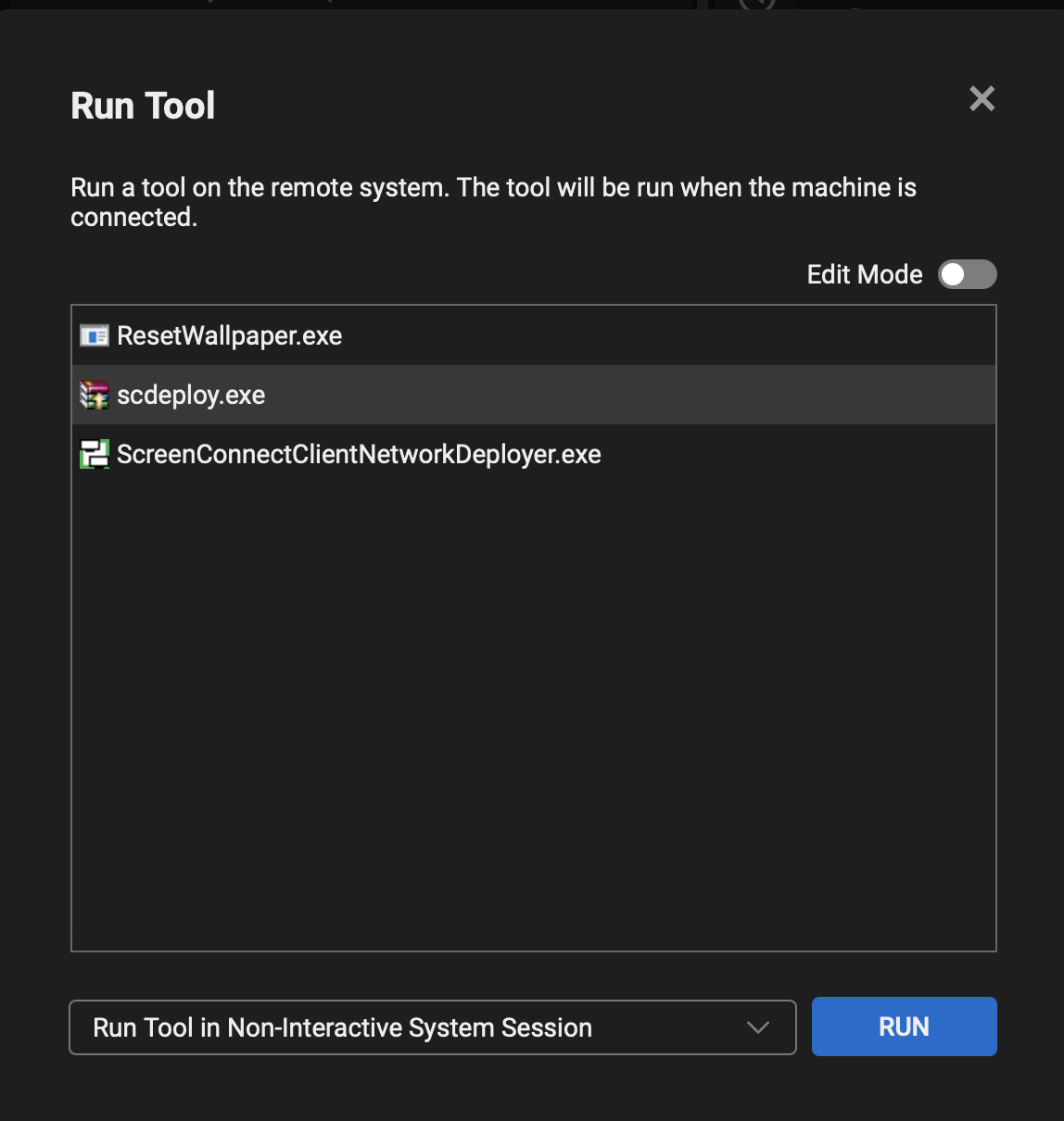
This is what I did and it has worked super well for me. For 90% of clients I was able to deploy them using "Run Tool" in "Non-Interactive System Session". For the few that didn't work I just connected to the Guest and ran it directly from the toolbox.

First as I'm sure you noticed you can't downgrade the agent. It requires uninstalling the old agent and re-installing a new agent (I tried to circumvent this to no avail). I was not about to manually create installers with each machine name.

Run the Report Manager extension and export a list of all your agents. We will use this to automatically generate guest agents with the correct name. In my case I only needed GuestMachineName, Name, CustomProperty1. I use GuestMachineName to cross reference the list and get both Name and CustomProperty1.

This forum software sucks so I will make another post with the powershell code (won't let me format just a portion as code)

Once you have your Report Manager Export (sc.csv) and the powershell and the batch file to call the powershell you package them up into a SFX archive using winrar. I set it to extract to an absolute path of C:\sc but you can choose a path like a public folder or temp directory to avoid certain user account controls.


When you deploy the SFX package it'll run through the powershell which will check if there's an agent installed. IF there is it will uninstall but before it'll check the machine name and compare it against the csv. Once it finds a match it'll check it'll craft the correct URL using the data it matched from the CSV. After uninstall it'll do some checks and cleanup and then install the agent.

Since the agent ID has changed you'll see a new entry in ScreenConnect for the reinstalled guest from there you remove the old guest from screenconnect.


I hope this helps and I'm glad I'm not the only one rolling back my server. Once ScreenConnect goes extinct I hope they know it started with the BS changes that go absolutely against every principle that the OG on-prem users shared. 

Avatar
0
mtech

to run the powershell you'll create a batch file containing:
powershell.exe -ExecutionPolicy Bypass -File "C:\sc\Deploy.ps1"

Good luck friends! Let me know how it works out!

Avatar
0
eNet

Thank you for sharing. That part is a huge help!  

Avatar
0
eNet

Disregard that last message. I found a place to grab the info. They are passed directly to the client service as command line parameters. So I can capture the start command from the registry and parse the startup link for the right client parameters. That's actually even easier than using the csv file. :-) 

Avatar
0
eNet

<#

.SYNOPSIS

ScreenConnect Agent Deployment with CSV Lookup

.DESCRIPTION

Looks up computer name in CSV, downloads ScreenConnect MSI with correct Name and Company,

uninstalls old version, and installs new version

#

# Original script by mtech.

# Modified to read the information from the registry for the client service instead of using a csv file.

# Modified to run from temp folders

# Modified calling batch file to clean up after itself.

#

# Leaves deployment.log and install.log in C:\windows\temp\ folder if running from Backstage.

# Leaves deployment.log and install.log in %TEMP% folder if running from elevated user.

#

#Save this as deploy.ps1

#

#>

# Force script to run from %TEMP%

Set-Location $env:TEMP

$WorkingPath = $env:TEMP

# Configuration

$LogFile = Join-Path $WorkingPath "deployment.log"

$MSIFile = Join-Path $WorkingPath "ScreenConnect.ClientSetup.msi"

# Logging function

function Write-Log {

param([string]$Message)

$Timestamp = Get-Date -Format "yyyy-MM-dd HH:mm:ss"

$LogMessage = "[$Timestamp] $Message"

Write-Host $LogMessage

Add-Content -Path $LogFile -Value $LogMessage

}

Write-Log "========================================="

Write-Log "ScreenConnect Deployment Script Started"

Write-Log "========================================="

# Step 1: Get computer name

$ComputerName = $env:COMPUTERNAME

Write-Log "Computer Name: $ComputerName"

#

# Step 1: Lookup the client identifier.

#

$String = (Get-WmiObject -Class Win32_Product | Where-Object { $_.Name -like "ScreenConnect Client (*" }).Name

# The starting index is 22 (characters 0-22 are skipped)

# The length is the total length minus the first 22 and the last 1 character

$ClientIdentifier = $String.Substring(22, $String.Length - 23)

Write-Log "Client Identifier: $ClientIdentifier"

#

# Step 2: Read the client service parameters from the registry and strip out the values we need.

#

# Define your starting point and the marker character/string

# Path to the existing client service registry key

$RegistryPath = "HKLM:\SYSTEM\CurrentControlSet\Services\ScreenConnect Client ("

$RegistryPath += "$ClientIdentifier"

$RegistryPath += ")"

$ValueName = "ImagePath" # Example value name

$Marker = "&t="

$HostMarker = "&h="

$PortMarker = "&p="

Write-Log "Reading registry value: $RegistryPath"

# Get the value data

$ValueData = (Get-ItemProperty -Path $RegistryPath).$ValueName

#

# Step 3: Check if the service value exists and start building the parameters.

#

if ($ValueData -match [regex]::Escape($Marker)) {

# Find the index of the marker

$MarkerIndex = $ValueData.IndexOf($Marker)

# Get the substring starting from the character *after* the marker

$NewValue = $ValueData.Substring($MarkerIndex + 1)

Write-Log "Host name and company values: $NewValue"

} else {

Write-Log "Service registry entry not found for server name and company parameters: $ValueName"

}

#

# Get the Host name index value

#

if ($ValueData -match [regex]::Escape($HostMarker)) {

# Find the index of the marker

$HostMarkerIndex = $ValueData.IndexOf($HostMarker)

Write-Log "Host Marker Value: $HostMarkerIndex"

} else {

Write-Log "Service registry entry not found for host parameters: $ValueName"

}

#

# Get the Port index value

#

if ($ValueData -match [regex]::Escape($PortMarker)) {

# Find the index of the marker

$PortMarkerIndex = $ValueData.IndexOf($PortMarker)

Write-Log "Host Port Value: $PortMarkerIndex"

} else {

Write-Log "Service registry entry not found for portparameters: $ValueName"

}

# Get the server substring starting from the third character *after* the Host marker and strip everything after the Port marker.

$ScreenConnectDomain = $ValueData.Substring(($HostMarkerIndex + 3), $($ValueData.IndexOf($PortMarker)-$ValueData.IndexOf($HostMarker)-3) )

Write-Log "Host Name Value: $ScreenConnectDomain"

# Step 4: Build download URL

Write-Log "Building download URL..."

# URL encode the parameters

Add-Type -AssemblyName System.Web

# Build URL with custom properties

# First parameter uses t= for Name (display name in ScreenConnect)

# Second parameter uses c= for CustomProperty1 (Company)

$DownloadURL = "https://$ScreenConnectDomain/Bin/ScreenConnect.ClientSetup.msi"

$DownloadURL += "?e=Access&y=Guest"

$DownloadURL += "&"

$DownloadURL += "$NewValue"

Write-Log "Download URL: $DownloadURL"

# Step 5: Download MSI

Write-Log "Downloading ScreenConnect installer..."

try {

# Use TLS 1.2

[Net.ServicePointManager]::SecurityProtocol = [Net.SecurityProtocolType]::Tls12

# Delete old MSI if exists

if (Test-Path $MSIFile) {

Remove-Item $MSIFile -Force

Write-Log "Removed old MSI file"

}

# Download

Invoke-WebRequest -Uri $DownloadURL -OutFile $MSIFile -UseBasicParsing

if (Test-Path $MSIFile) {

$FileSize = (Get-Item $MSIFile).Length / 1MB

Write-Log "Download successful! File size: $([math]::Round($FileSize, 2)) MB"

} else {

Write-Log "ERROR: Download failed - file not created"

exit 1

}

} catch {

Write-Log "ERROR downloading MSI: $($_.Exception.Message)"

Write-Host "`nERROR: Failed to download installer"

Write-Host $_.Exception.Message

pause

exit 1

}

# Step 6: Unblock from SmartScreen

Write-Log "Unblocking MSI from SmartScreen..."

try {

Unblock-File -Path $MSIFile -ErrorAction SilentlyContinue

Remove-Item -Path $MSIFile -Stream "Zone.Identifier" -ErrorAction SilentlyContinue

Write-Log "MSI file unblocked successfully"

} catch {

Write-Log "Note: Could not unblock file (may not be blocked): $($_.Exception.Message)"

}

# Step 7: Uninstall current version

Write-Log "Checking for existing ScreenConnect installation..."

$Uninstalled = $false

try {

# Find existing installation

$SCProduct = Get-WmiObject -Class Win32_Product | Where-Object { $_.Name -like "ScreenConnect Client*" }

if ($SCProduct) {

Write-Log "Found existing installation: $($SCProduct.Name)"

Write-Log "Version: $($SCProduct.Version)"

Write-Log "Starting uninstall..."

$UninstallResult = $SCProduct.Uninstall()

if ($UninstallResult.ReturnValue -eq 0) {

Write-Log "Uninstall completed successfully"

$Uninstalled = $true

Start-Sleep -Seconds 10

} else {

Write-Log "Uninstall returned code: $($UninstallResult.ReturnValue)"

}

# Double-check with registry cleanup

Write-Log "Performing registry cleanup..."

$UninstallKeys = @()

$UninstallKeys += Get-ChildItem "HKLM:\SOFTWARE\Microsoft\Windows\CurrentVersion\Uninstall" -ErrorAction SilentlyContinue

$UninstallKeys += Get-ChildItem "HKLM:\SOFTWARE\WOW6432Node\Microsoft\Windows\CurrentVersion\Uninstall" -ErrorAction SilentlyContinue

foreach ($Key in $UninstallKeys) {

$DisplayName = $Key.GetValue("DisplayName")

if ($DisplayName -like "*ScreenConnect Client*") {

$UninstallString = $Key.GetValue("UninstallString")

if ($UninstallString -match "{.*}") {

$ProductCode = $matches[0]

Write-Log "Cleanup via product code: $ProductCode"

Start-Process "msiexec.exe" -ArgumentList "/x $ProductCode /qn /norestart" -Wait -NoNewWindow

Start-Sleep -Seconds 5

}

}

}

} else {

Write-Log "No existing ScreenConnect installation found"

}

} catch {

Write-Log "Error during uninstall: $($_.Exception.Message)"

}

# Step 8: Confirm uninstall completed

Write-Log "Verifying uninstall completed..."

Start-Sleep -Seconds 3

$StillInstalled = Get-WmiObject -Class Win32_Product | Where-Object { $_.Name -like "ScreenConnect Client*" }

if ($StillInstalled) {

Write-Log "WARNING: ScreenConnect still appears to be installed"

} else {

Write-Log "ScreenConnect Uninstall verified - system is clean"

}

# Step 8: Confirm uninstall completed

Write-Log "Verifying uninstall completed..."

Start-Sleep -Seconds 3

$StillInstalled = Get-WmiObject -Class Win32_Product | Where-Object { $_.Name -like "eNetConnect Client*" }

if ($StillInstalled) {

Write-Log "WARNING: eNetConnect still appears to be installed"

} else {

Write-Log "eNetConnect Uninstall verified - system is clean"

}

# Step 9: Install new version

Write-Log "Installing ScreenConnect with Name='$AgentName' and Company='$Company'..."

try {

$InstallLogPath = Join-Path $WorkingPath "install.log"

$InstallArgs = @(

"/i"

"`"$MSIFile`""

"/qn"

"/norestart"

"/L*v"

"`"$InstallLogPath`""

)

Write-Log "Starting installation (silent mode)..."

Write-Log "Installation log: $InstallLogPath"

$InstallProcess = Start-Process "msiexec.exe" -ArgumentList $InstallArgs -Wait -PassThru -NoNewWindow

$ExitCode = $InstallProcess.ExitCode

Write-Log "Installation exit code: $ExitCode"

if ($ExitCode -eq 0) {

Write-Log "Installation completed successfully!"

} elseif ($ExitCode -eq 3010) {

Write-Log "Installation completed successfully (reboot required)"

} else {

Write-Log "WARNING: Installation returned exit code $ExitCode"

Write-Log "Check $InstallLogPath for details"

}

} catch {

Write-Log "ERROR during installation: $($_.Exception.Message)"

Write-Host "`nERROR: Installation failed"

Write-Host $_.Exception.Message

pause

exit 1

}

# Step 10: Verify installation

Write-Log "Verifying new installation..."

Start-Sleep -Seconds 5

$NewInstall = Get-WmiObject -Class Win32_Product | Where-Object { $_.Name -like "ScreenConnect Client*" }

if ($NewInstall) {

Write-Log "SUCCESS! New installation verified"

Write-Log "Installed: $($NewInstall.Name)"

Write-Log "Version: $($NewInstall.Version)"

} else {

Write-Log "WARNING: Could not verify installation"

}

Write-Log "========================================="

Write-Log "Deployment Complete"

Write-Log "========================================="

# Summary

Write-Host "`n"

Write-Host "================================================"

Write-Host " ScreenConnect Deployment Complete!"

Write-Host "================================================"

Write-Host "Computer Name: $ComputerName"

Write-Host "Agent Name: $AgentName"

Write-Host "Company: $Company"

Write-Host "Log File: $LogFile"

Write-Host "================================================"

Write-Host "`n"

# Keep window open for review

#Write-Host "Press any key to exit..."

#$null = $Host.UI.RawUI.ReadKey("NoEcho,IncludeKeyDown")

Avatar
0
eNet

#

#save this is scdeploy.bat

#

powershell.exe -ExecutionPolicy Bypass -File ".\deploy.ps1"

del .\deploy.ps1
del .\ScreenConnect.ClientSetup.msi
del %TEMP%\ScreenConnect.ClientSetup.msi

Avatar
0
eNet

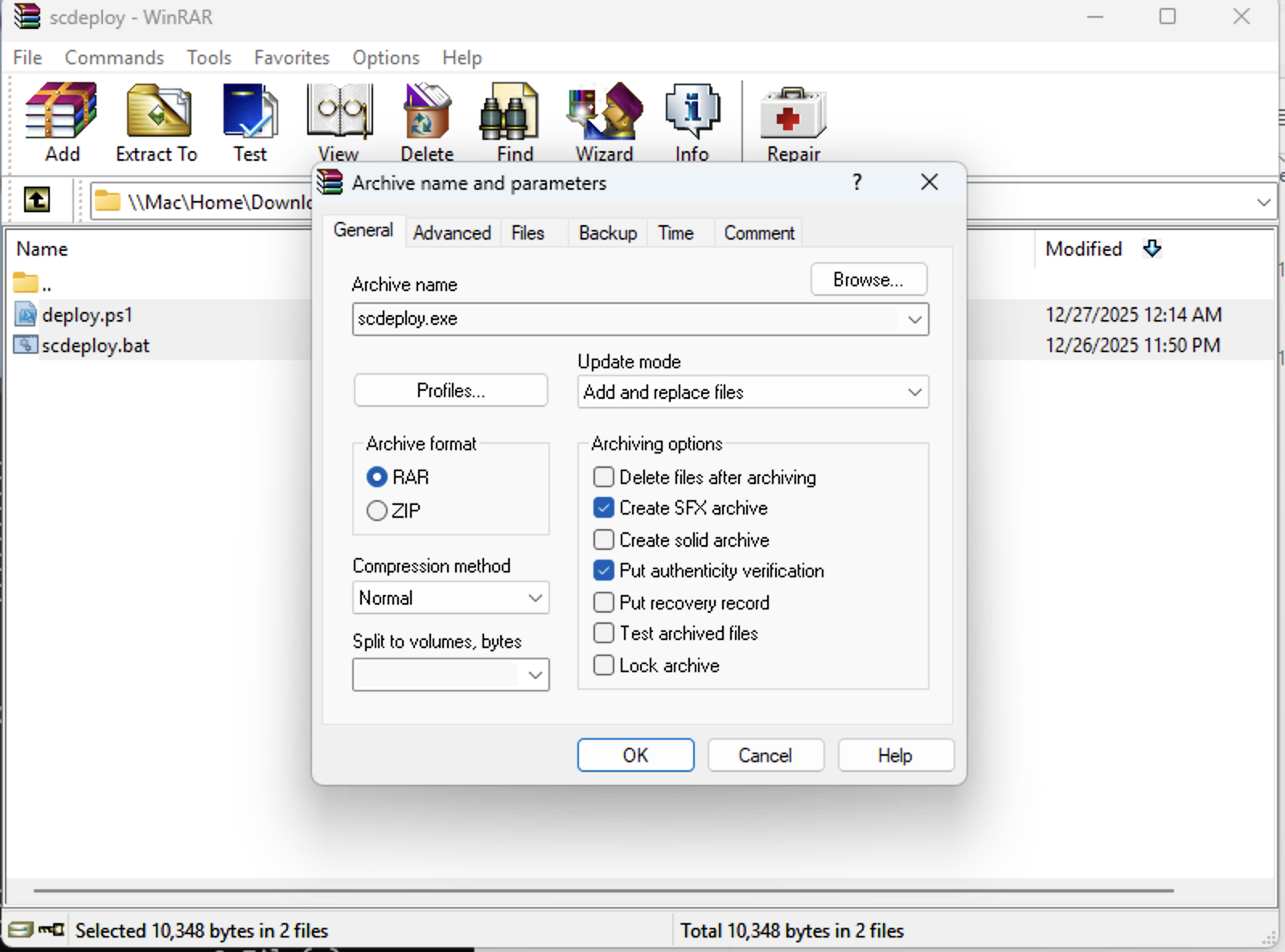
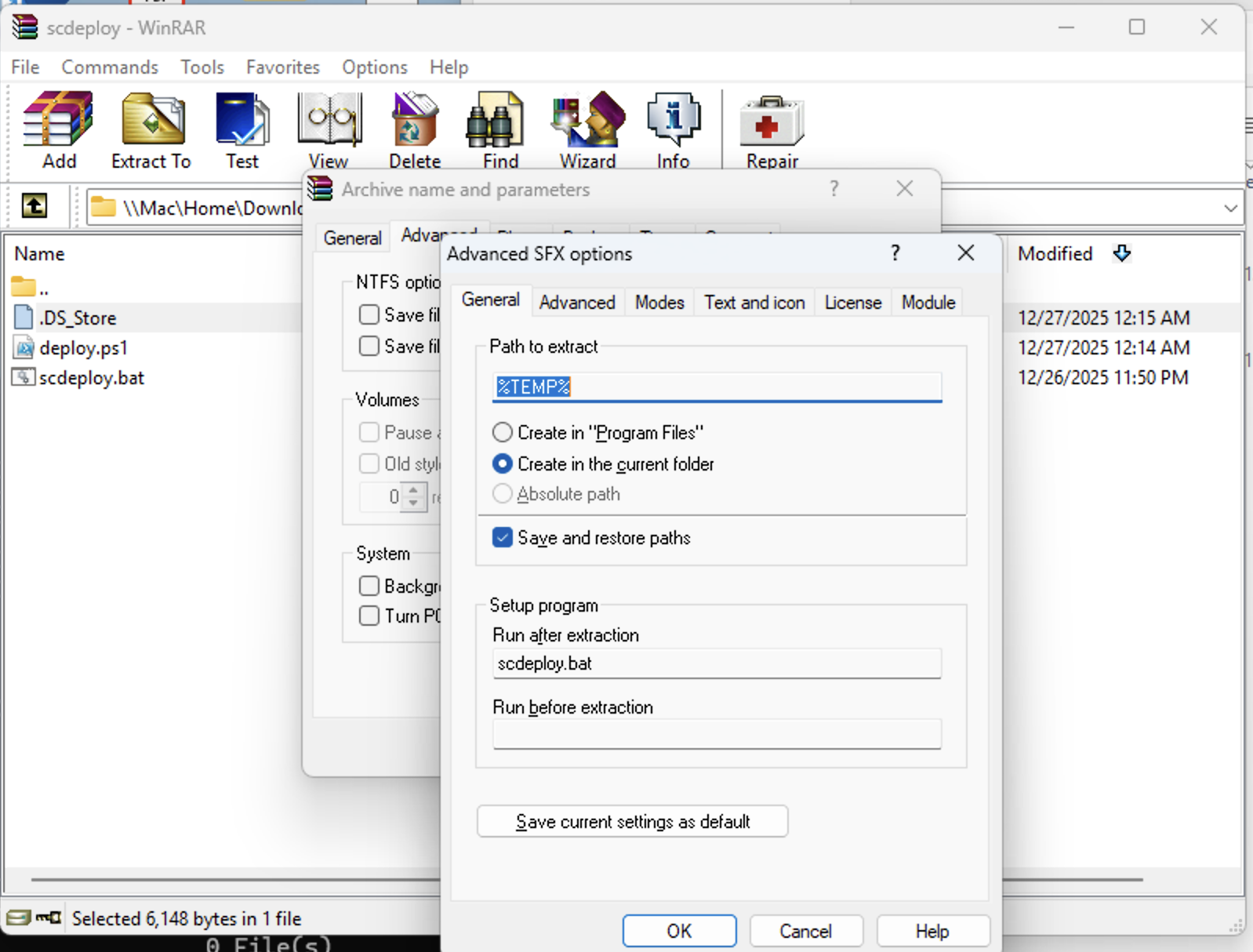
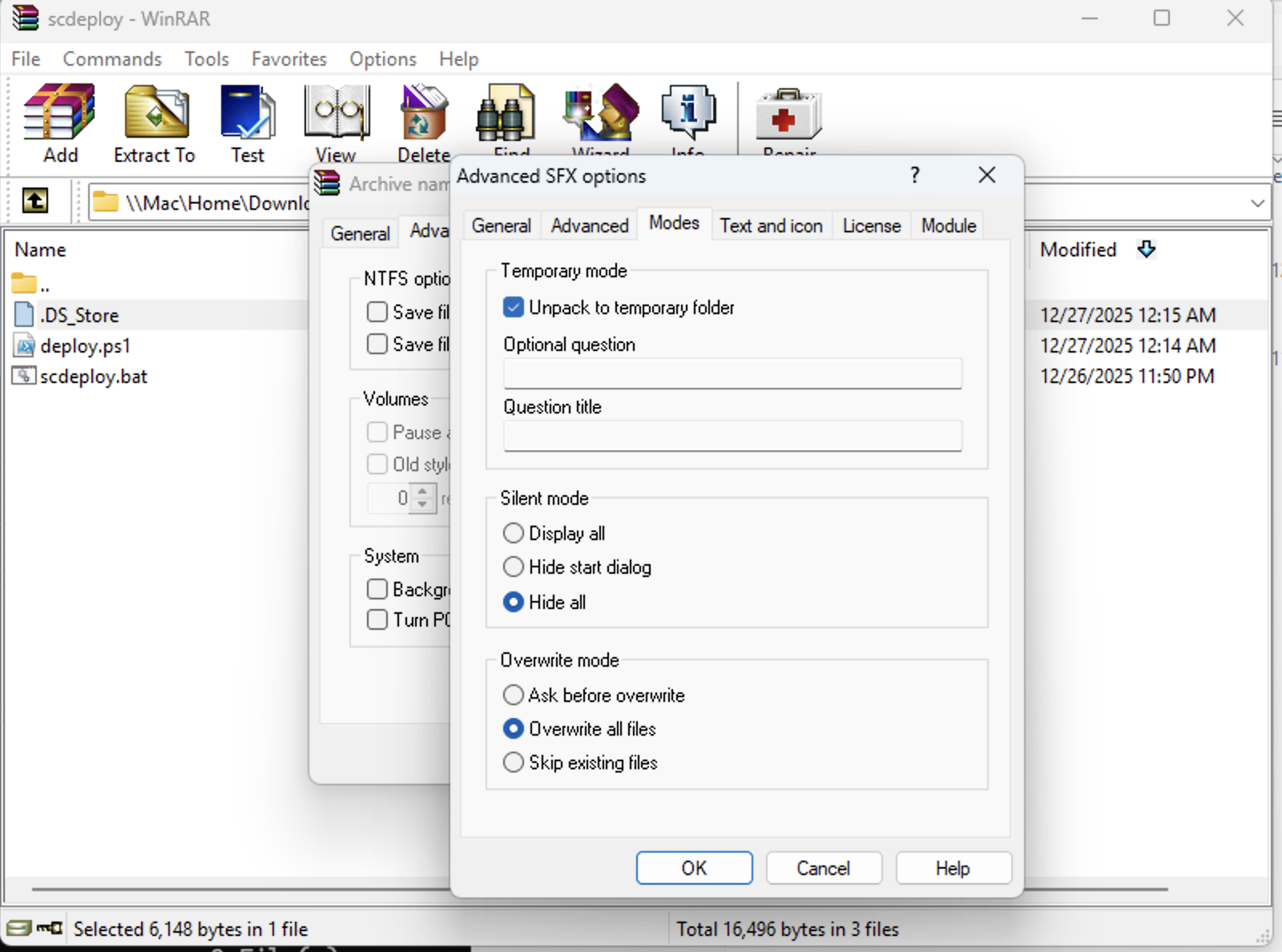
Create a self extracting archive called scdeploy.exe using these screenshots as a guide for the settings.  Then in the last image, add the self extracting archive to a Toolbox and then use it to deploy using the backstage for each of the clients you need to roll back to whatever version you are running on your server.

Image 1419

Image 1420

Image 1421

Image 1422